7. Nova Bulk
Welcome to the Nova Bulk section. This feature allows you to send mass payments to multiple beneficiaries at once. Follow the steps below to create a group and initiate a bulk transaction.
Step 1: Access Nova Bulk and create a group
- Click on the Nova Bulk section in the sidebar.
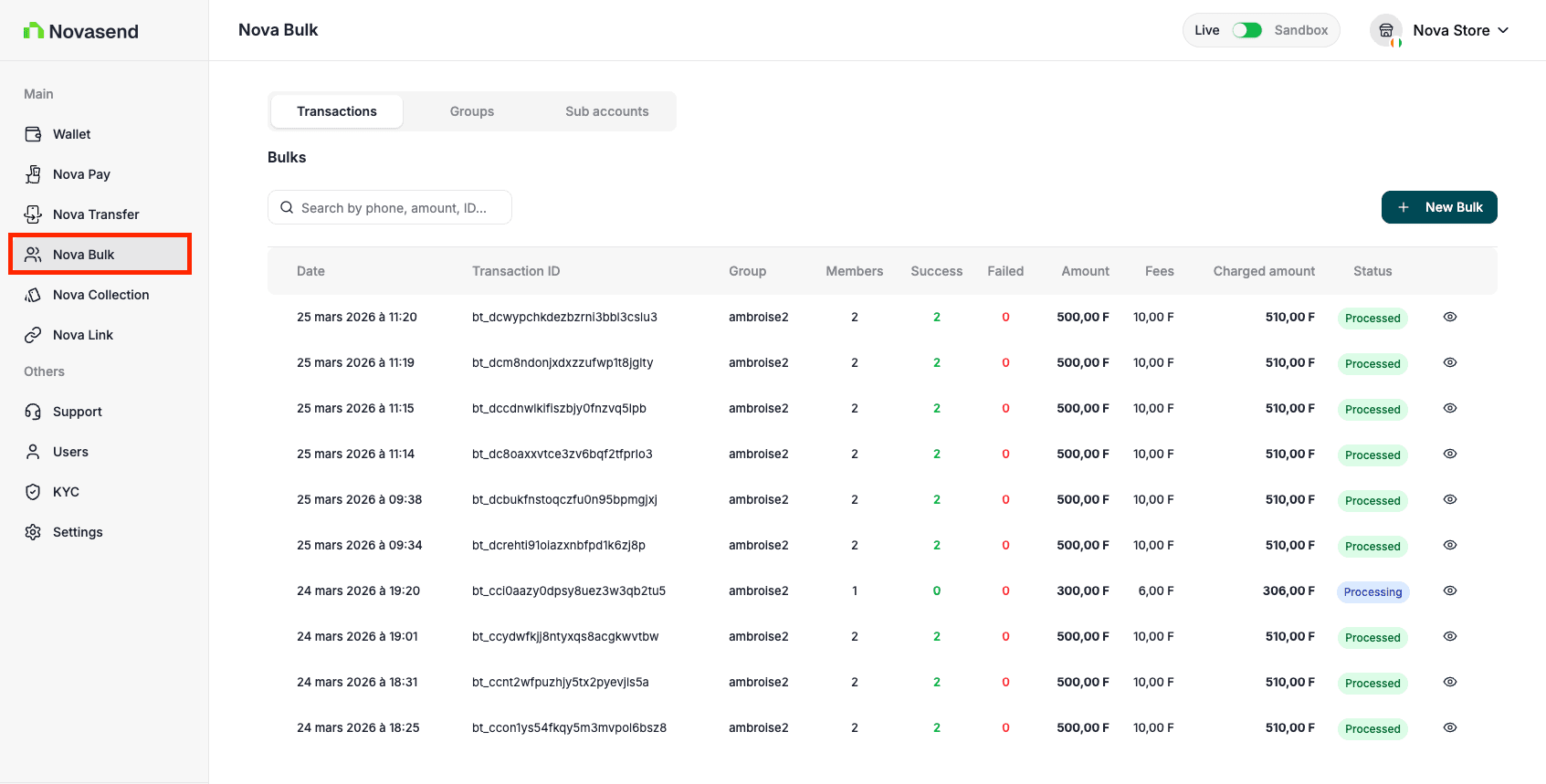
- To create a bulk, you must first create a group. Click on the Group tab, then on the New group button.
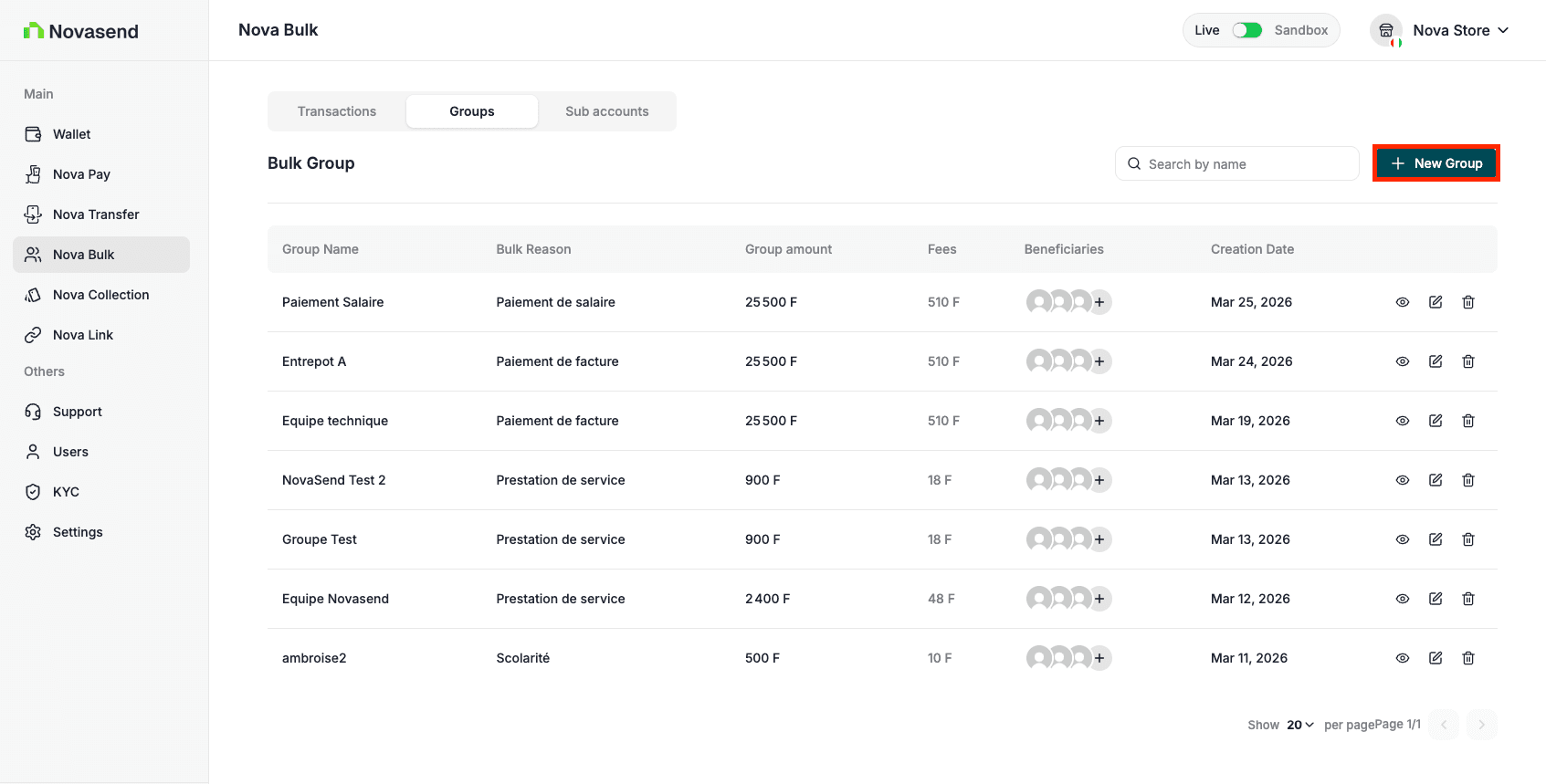
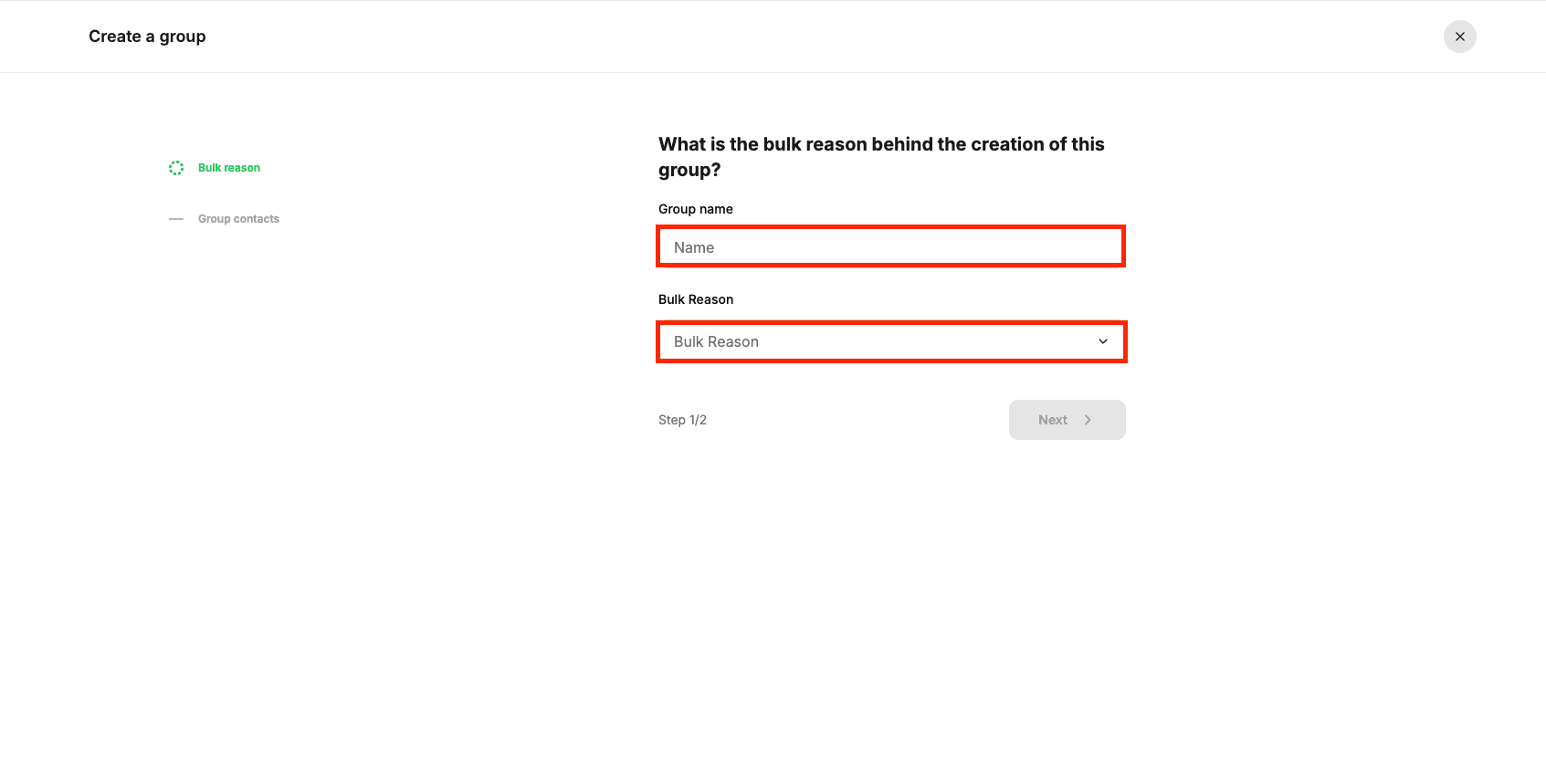
Step 2: Group information
- Enter the group name.
- Choose the reason for creating the group from the reasons dropdown list.
Step 3: Add beneficiaries
Now enter the beneficiaries’ information. Two options are available:
Option A: Manual entry
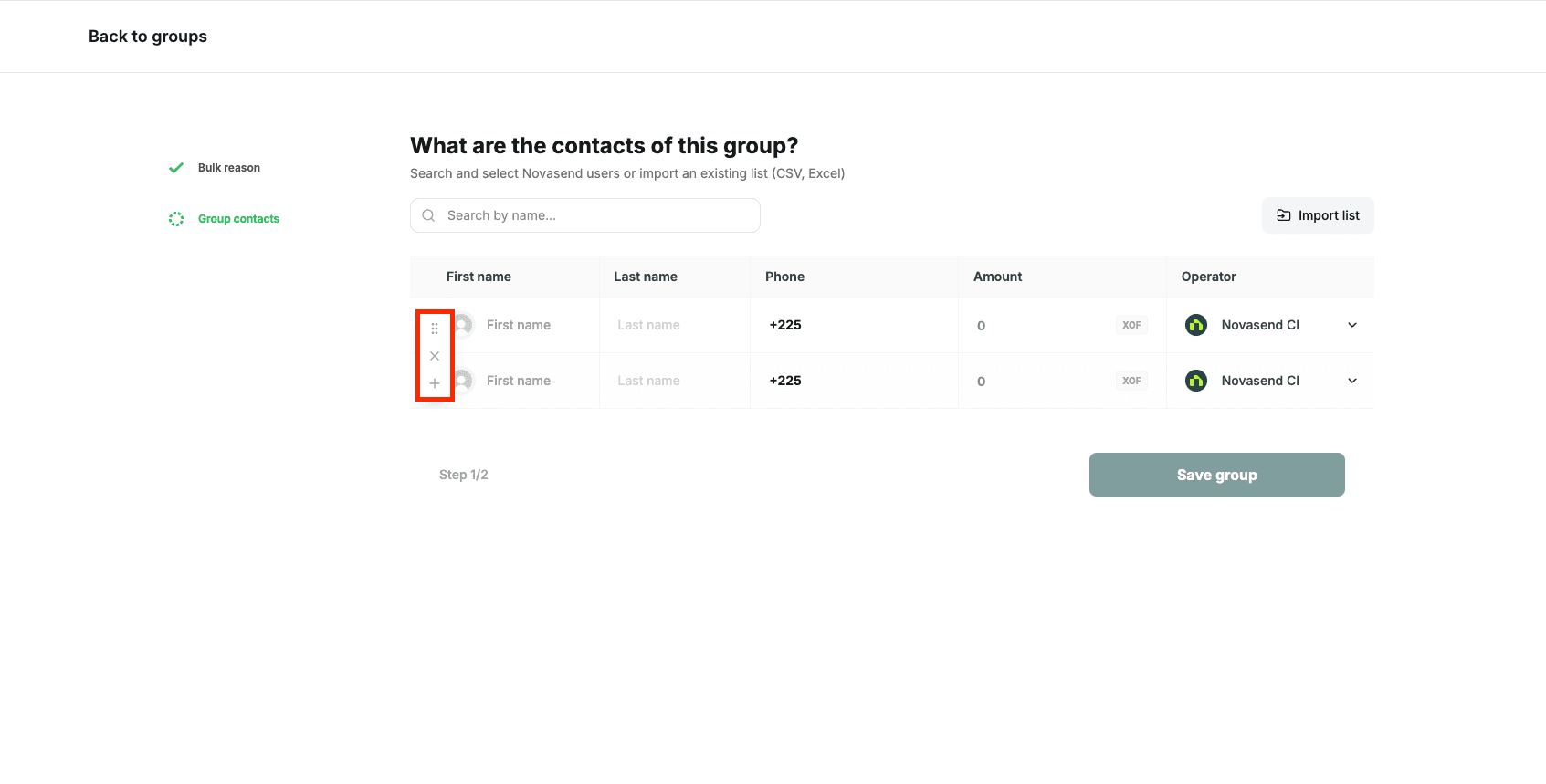
- Hover over the list to reveal a vertical button on the right, which allows you to add, move, and delete a group member.
Option B: Import a list
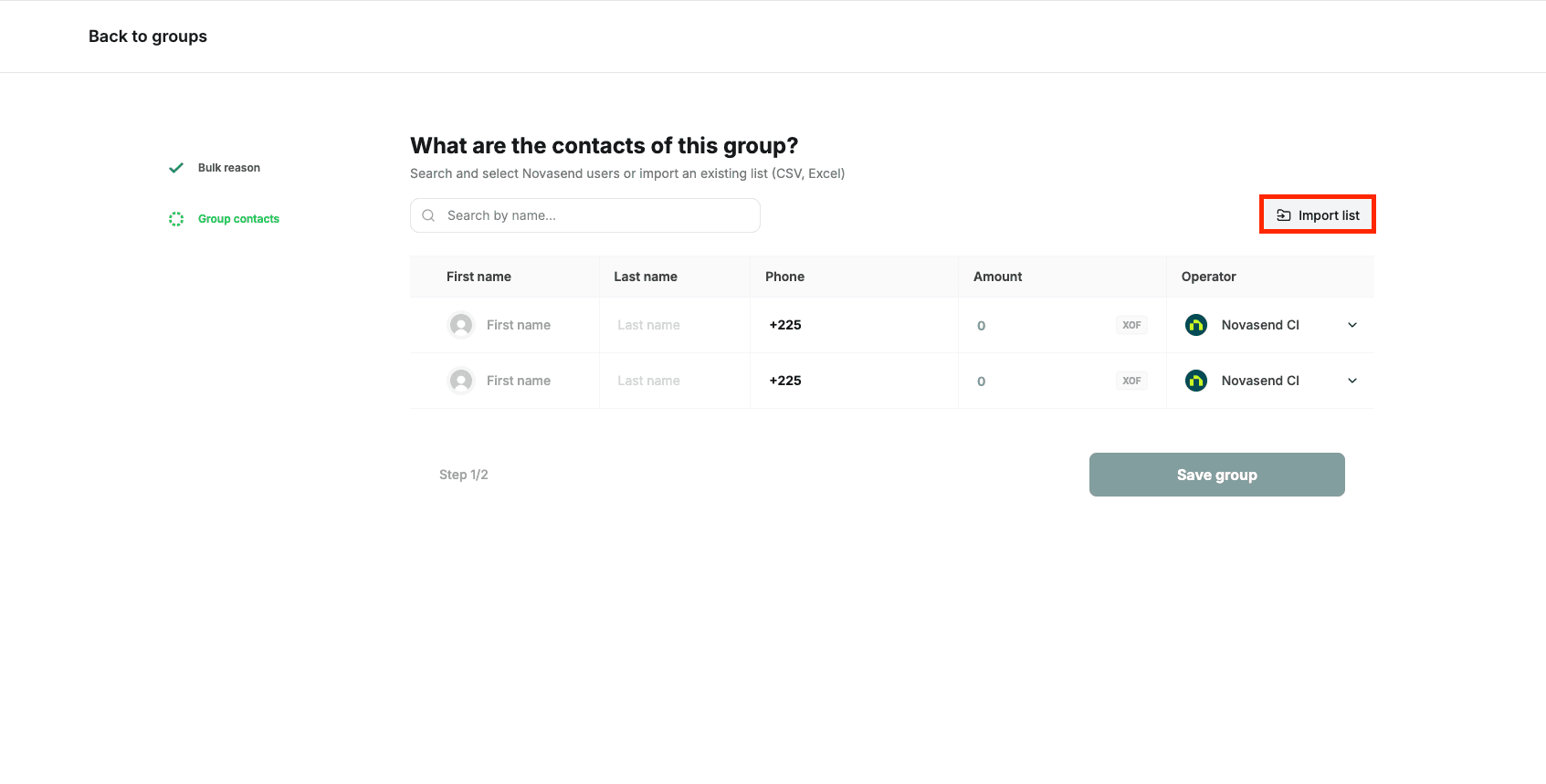
- Click on the Import a list button to import an existing group in Excel, CSV, or XLSX format.
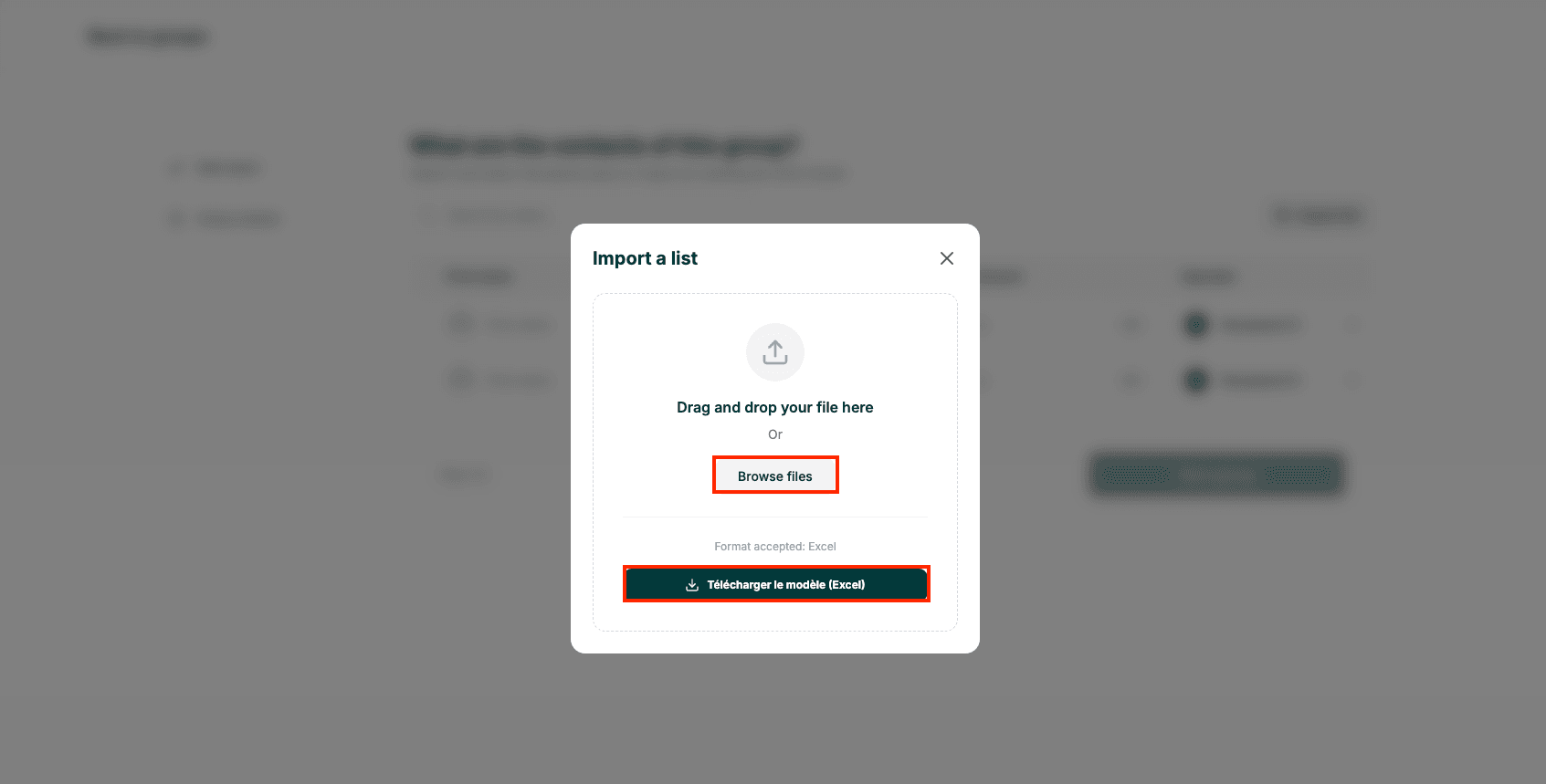
- In the import modal, you can download a sample file by clicking Download template (excel). Fill it out to make your group creation easier.
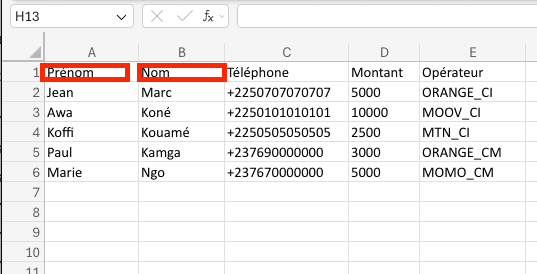
How to fill out the Excel file:
First, open the downloaded file in the Excel software. Then:
-
First and last name: Add the first and last names of the different group members.
-
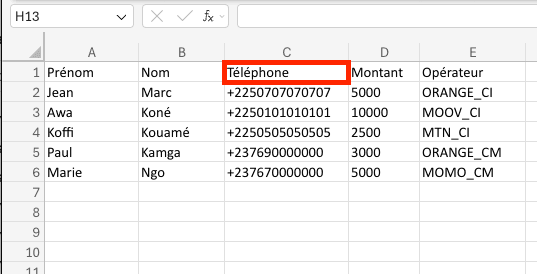
Phone number: Add their phone number preceded by the country code +225 for Ivory Coast and +237 for Cameroon.
-
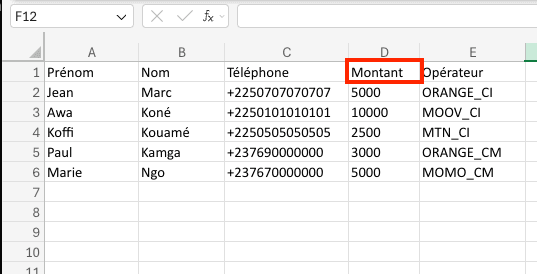
Amount: Enter the amount you wish to send to each member.
-
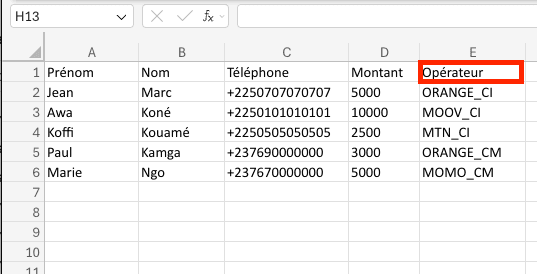
Operator: Enter the operator, paying close attention to the operator names. The format always ends with an underscore followed by the country code: _CI for Ivory Coast and _CM for Cameroon, preceded by the operator’s name. Here are some examples:
Ivory Coast - CI
| Provider | Code |
|---|---|
| Novasend | NOVASEND_CI |
| Orange | ORANGE_CI |
| MTN | MOMO_CI |
| Moov | MOOV_CI |
| Wave | WAVE_CI |
Cameroon - CM
| Provider | Code |
|---|---|
| Novasend | NOVASEND_CM |
| Orange | ORANGE_CM |
| MTN | MOMO_CM |
Once your beneficiaries are added or imported, click on Save the group to finalize its creation.
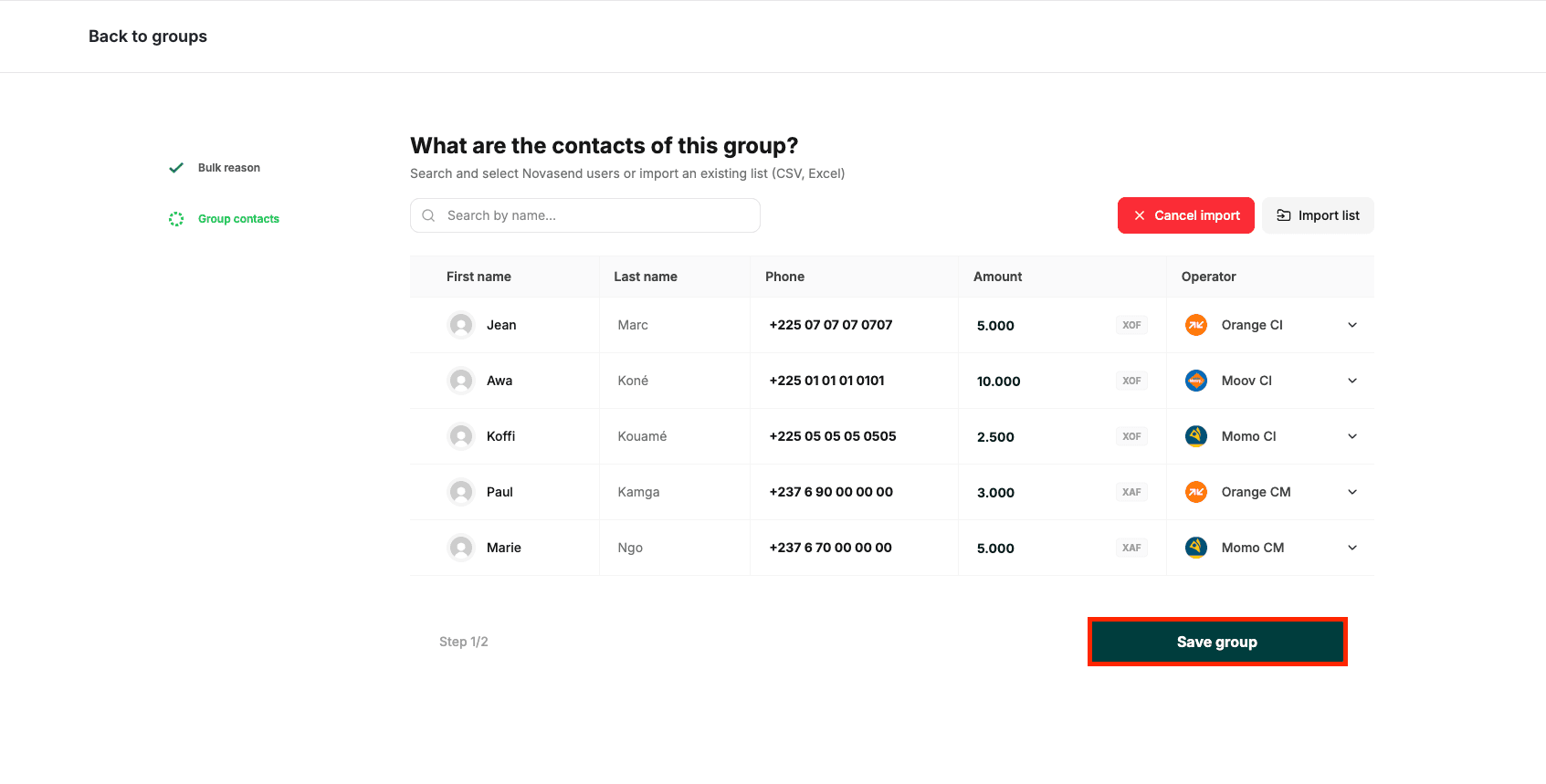
Make sure to double-check the amounts, phone numbers, and operators. You will still be able to change them later by either modifying the group directly or during the creation of the bulk.
Step 4: Initiate the Bulk
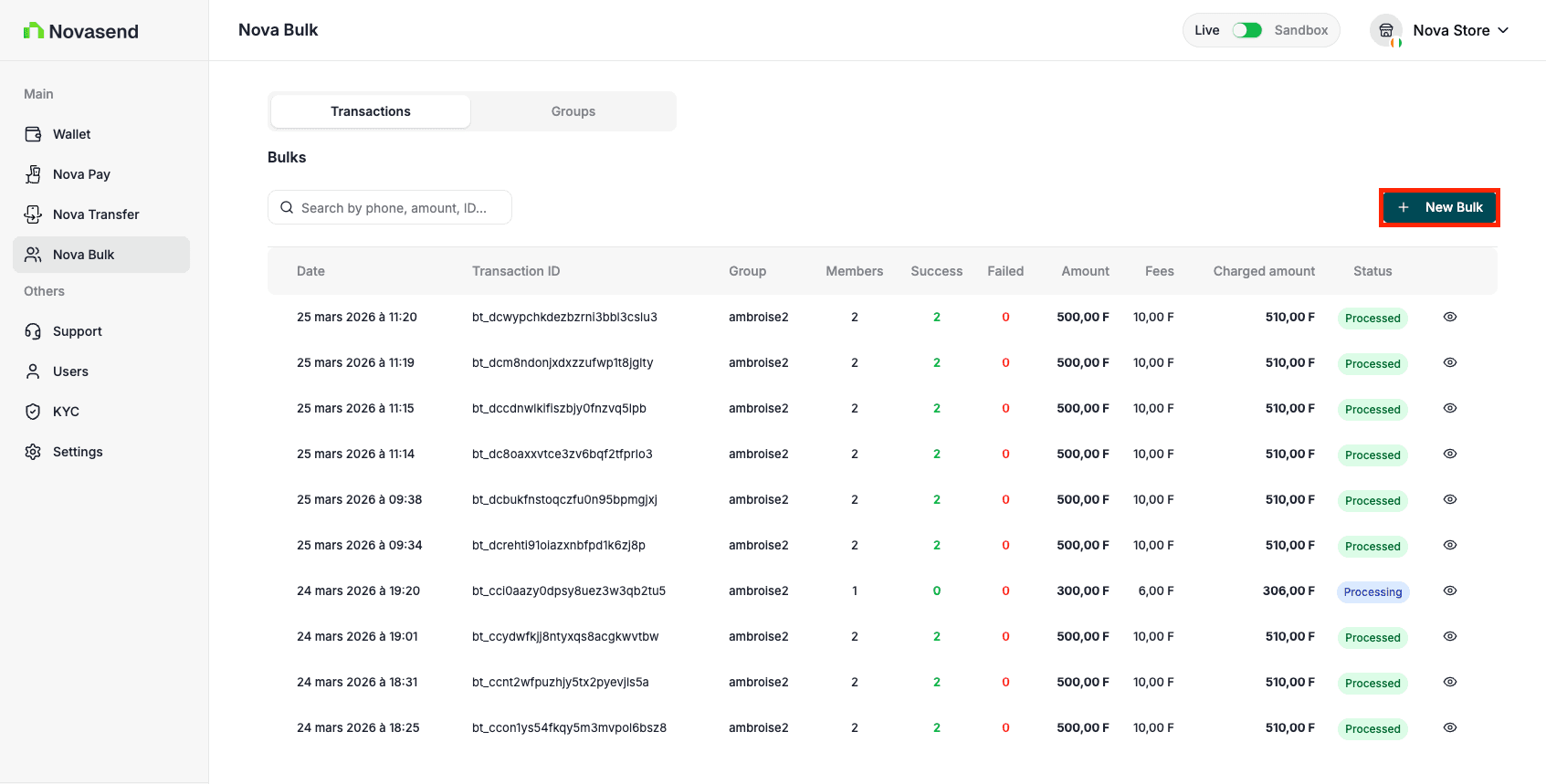
- Return to the main Nova Bulk page, click on the Transaction tab, and then on the New bulk button.
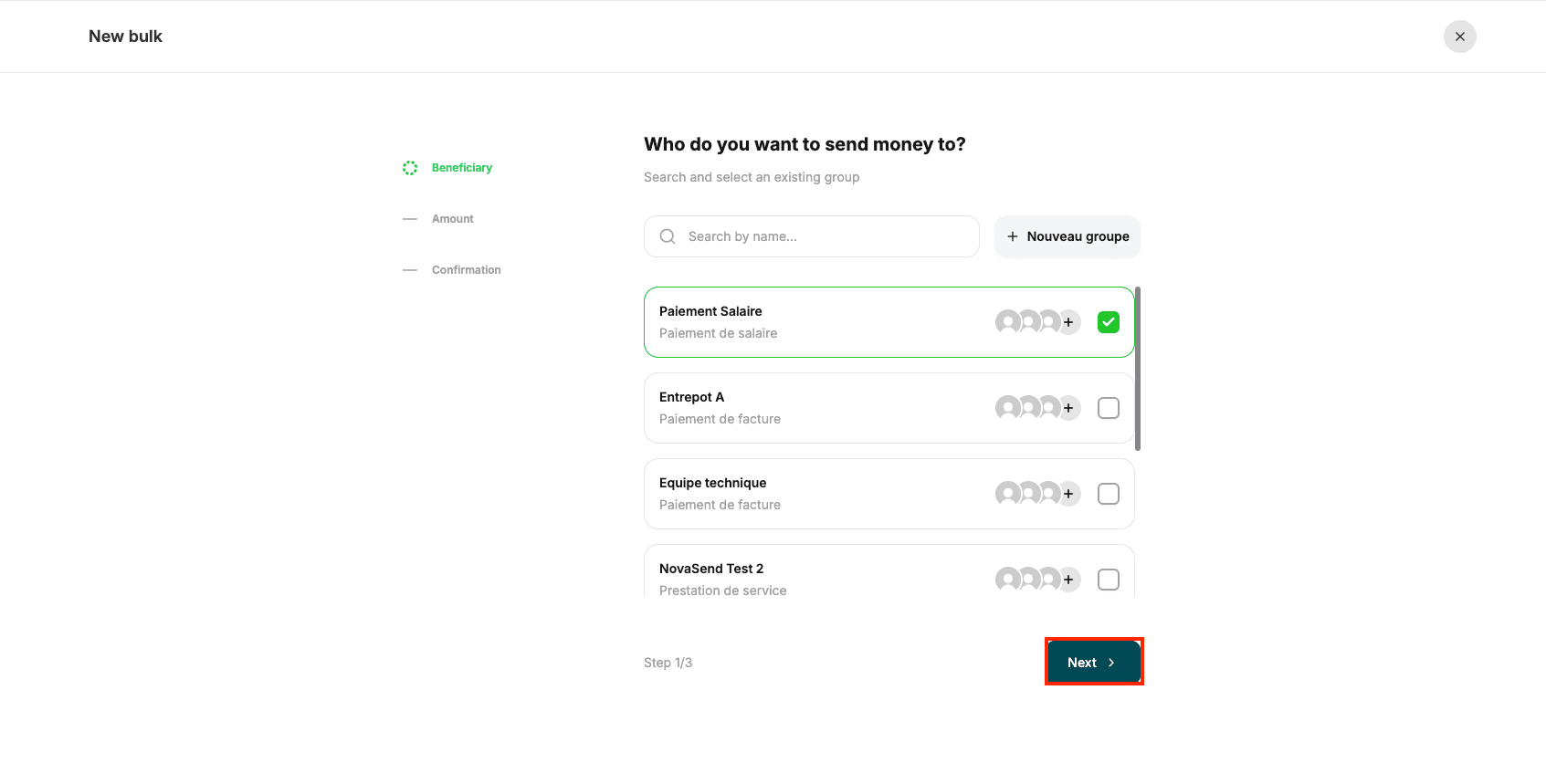
- Select the group you wish to send the bulk to by checking its box, then click Next.
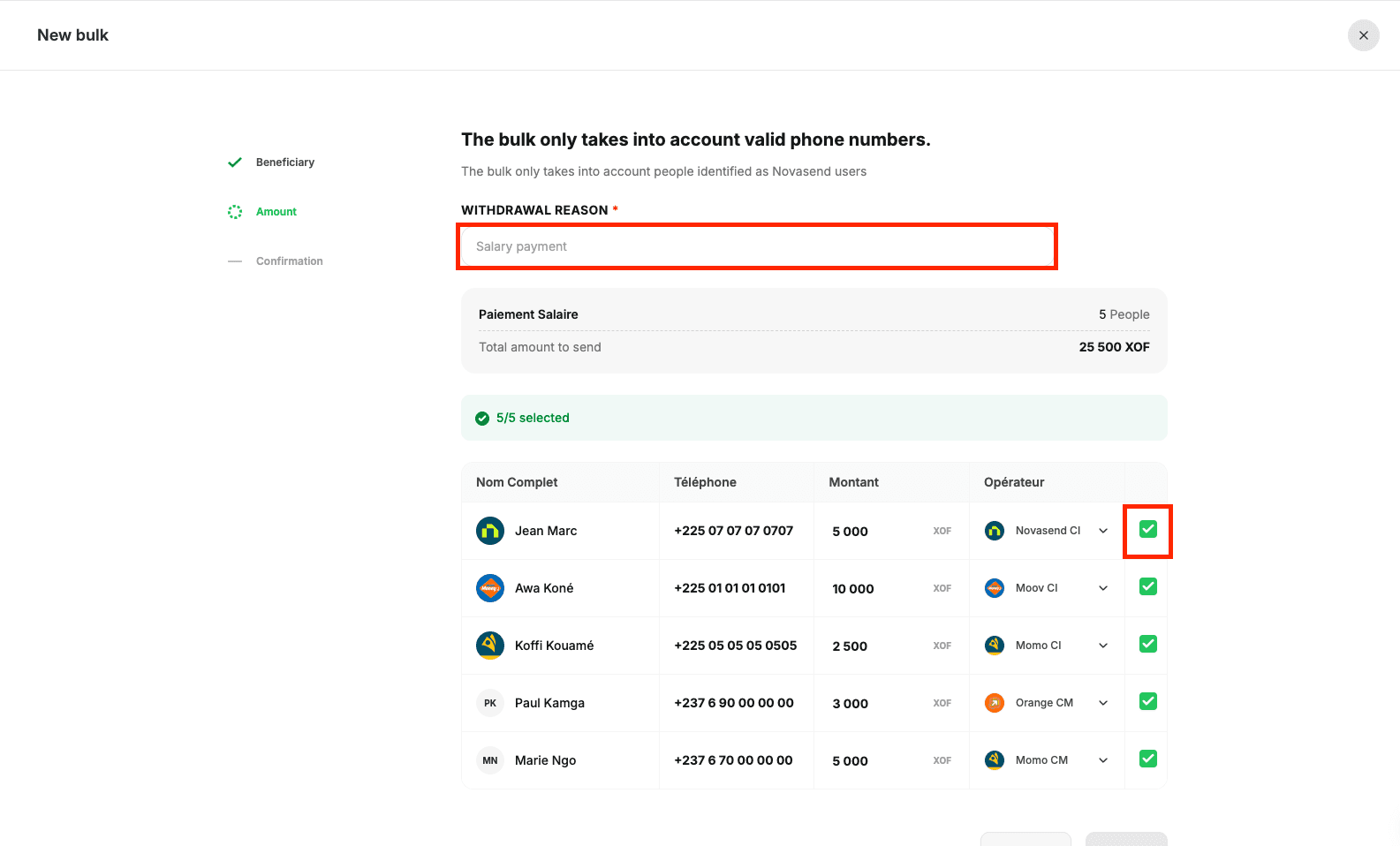
- You will see the list of group members. You can modify or adjust them before proceeding. You notably have the possibility to uncheck certain members from the list in order to exclude them from this specific bulk.
- You must enter a bulk reason (note that this reason is different from the group reason. E.g.: salary payments, etc.). Click Next.
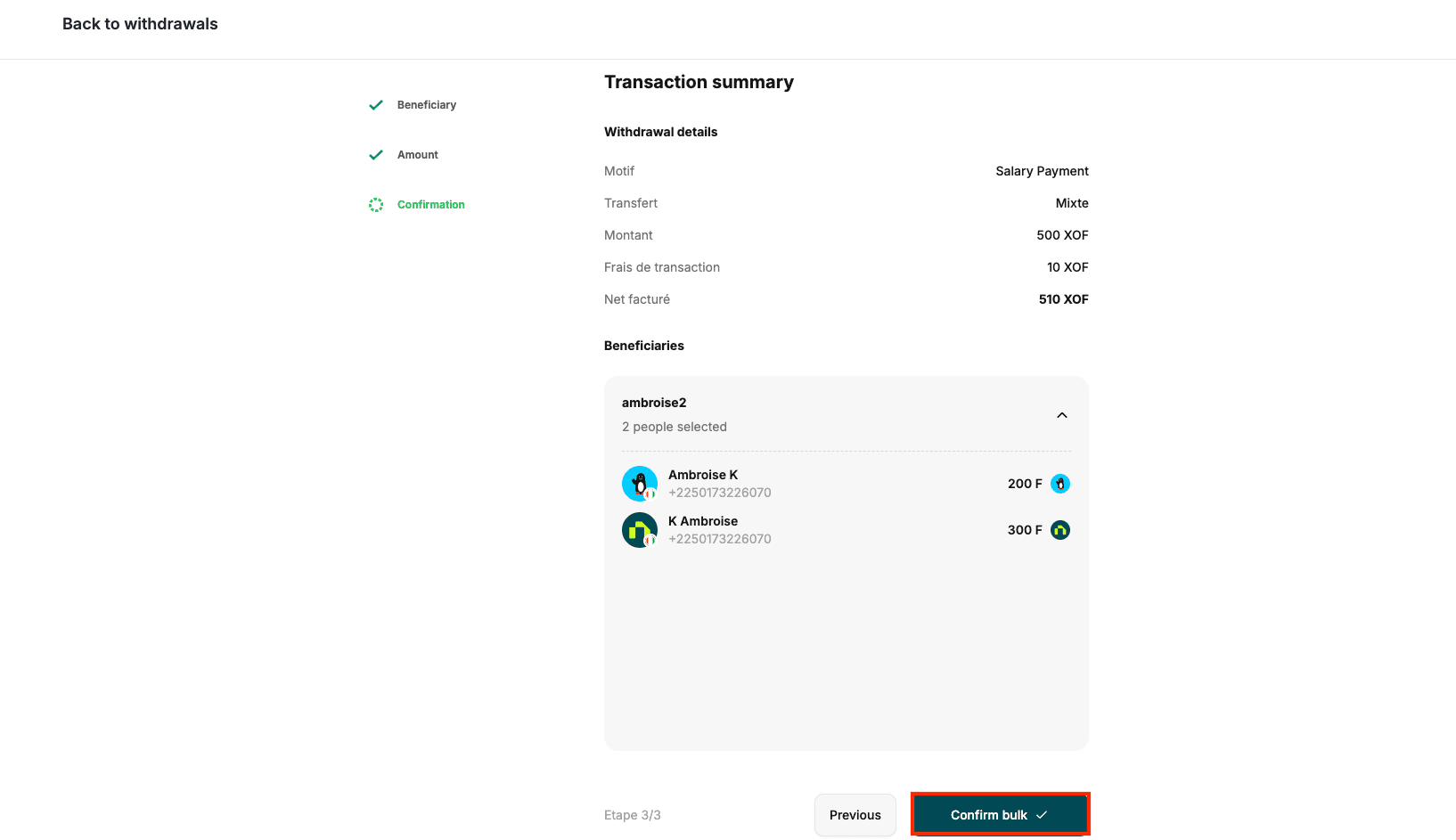
- You will reach the summary screen. Verify all the information one last time before confirming the bulk transaction.
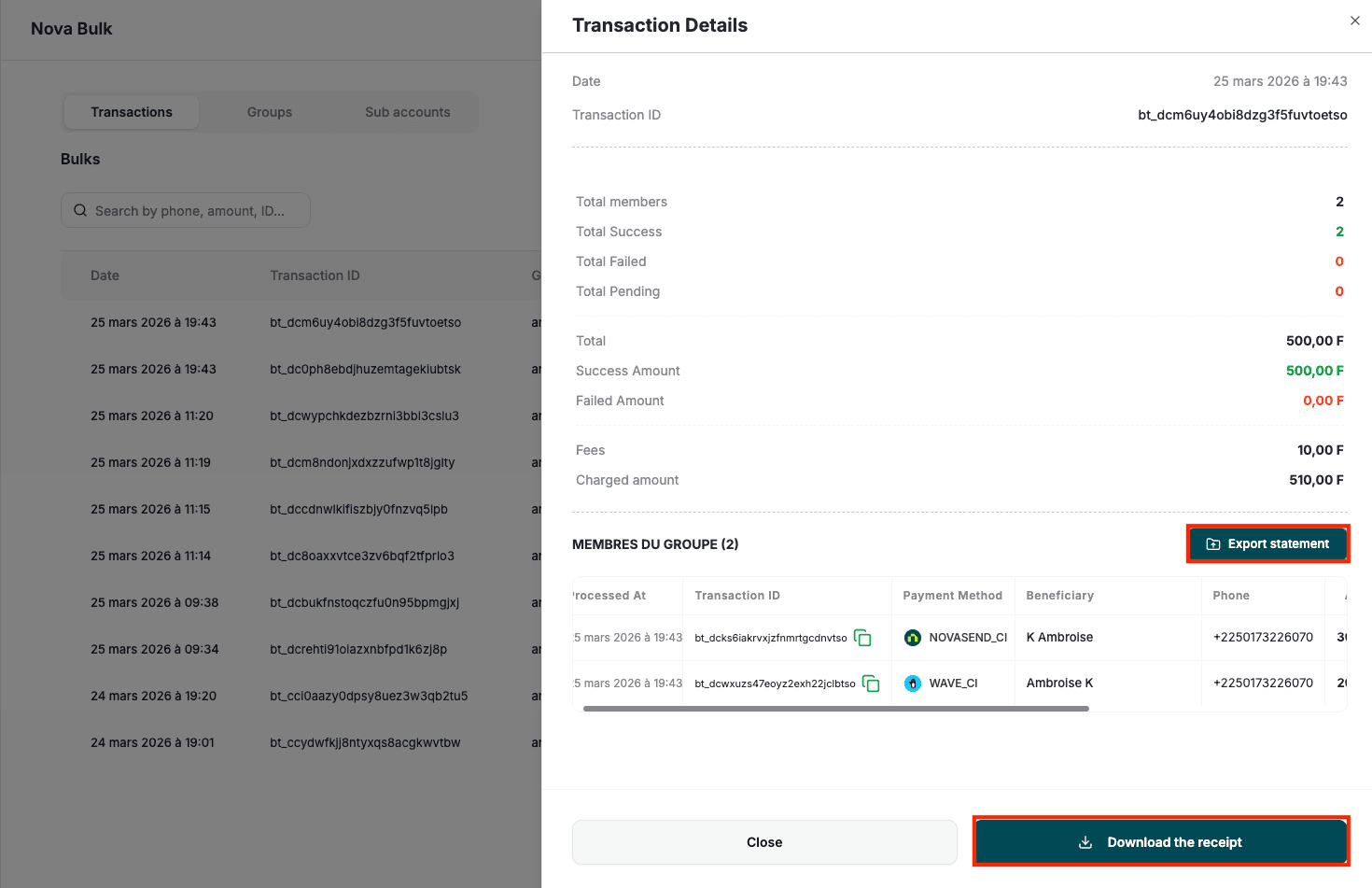
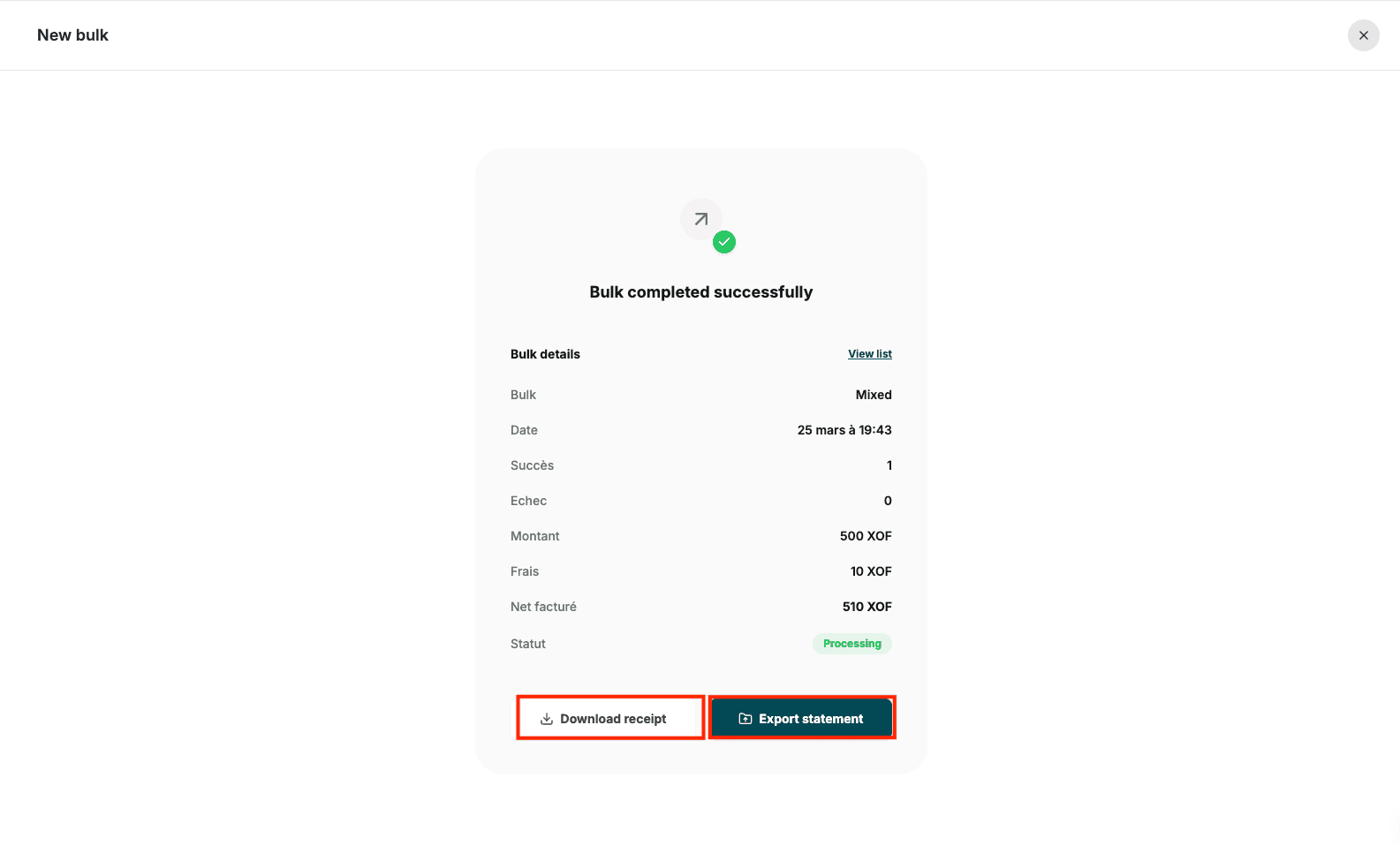
- Once the bulk is launched, you will be redirected to the success screen. You will have the option to:
- Download the receipt: This applies to the overall bulk transaction.
- Export the statement: This contains more details, namely the full list of members involved.
-
You also have the possibility to download receipts and statements of bulks from the Transaction tab in the bulk page.
- Click on a bulk transaction in the list or on the eye icon to view transaction details.
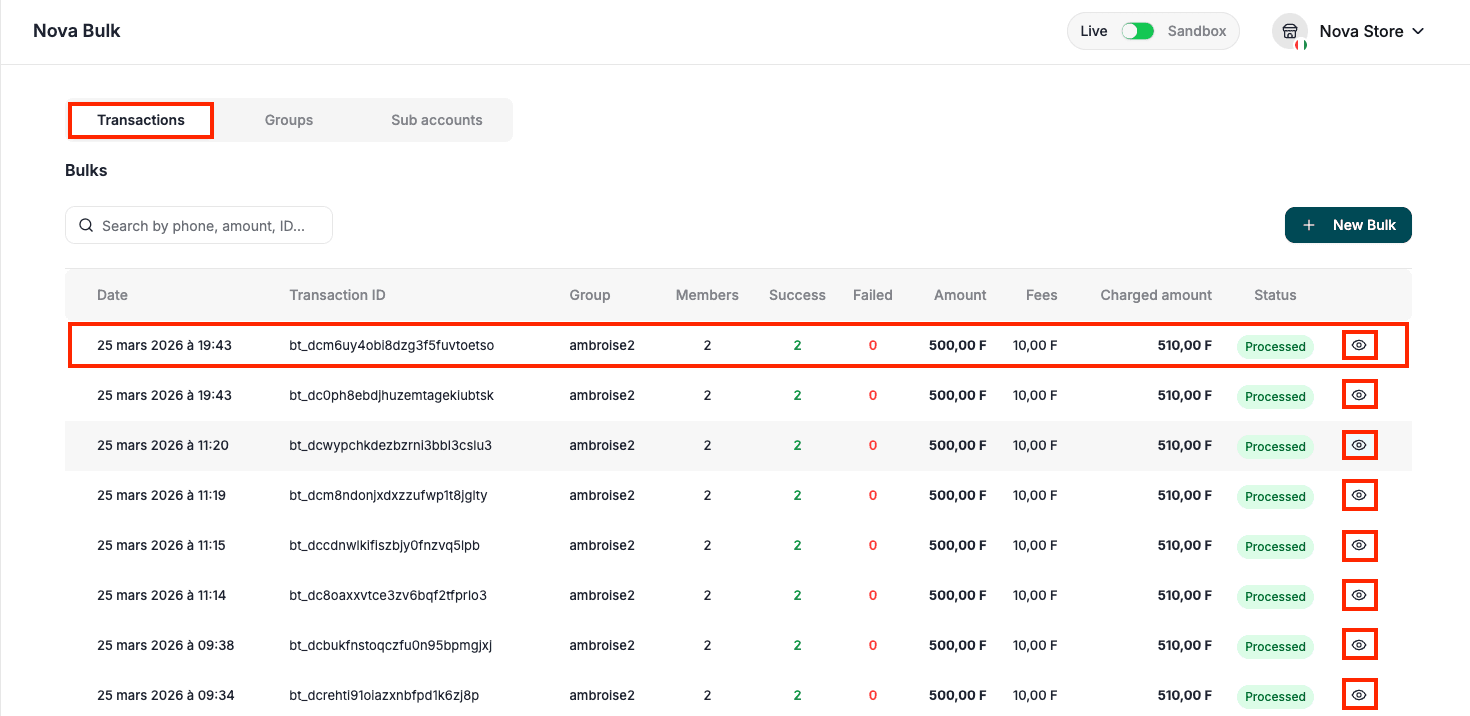
- Click on the Export statement button to start downloading the statement.
- Click on the Download receipt button to start downloading the receipt.